How to Master GNU/Linux in 20 steps

Publicado por · Deja un comentario 

A continuación reproduzco un artículo muy interesante sobre cómo dominar Linux, aunque se podría aplicar a cualquier otro área de conocimiento humano (con adaptaciones, claro). El original se puede encontrar aquí.

How to Master GNU/Linux* in 20 steps

A friend of mine asked me how he could go about switching to Linux. I sent an email back with some suggestions about how to approach it and he suggested that I should share it with others, which I did through this page.

Gonzalo Porcel Quero

v. 0.1 June 15, 2004

  1. Have a reason why you want to learn Linux. Learn about the origins and history of our community. When you know how far we have come and how we got to where we are, you are more likely to appreciate the efforts of those that came before you.
  2. Set a number of tasks that you want to be able to accomplish within the first month. Write them down and track your progress. Be ambitiously sensible. Whether it takes you a month or two, it does not matter. Real knowledge of something gained in two months is preferable to shallow knowledge acquired in one month.
  3. Document, document, document. Keep a log of what you do on your computer. It is one of an administrator’s most precious tools. Even if you are the single user of your computer, you are still its administrator. Your «admin log» will make troubleshooting easier. It will also make the same task easier next time that you have to do it.
  4. Write down the cool things that you learn that you had not expected to learn. When you figure something out, share it with others. By doing so, you nurture the community that will in turn nurture you and you make sure that you have really fully internalized the newly acquired knowledge. Even if you have not written a line of code in your entire life and never intend to do so, you can share everything you know, thereby creating a multiplier effect in the chain of knowledge sharing.That little piece of documentation that you write will help somebody when he walks down the same path that you are now on.
  5. Ask questions the the smart way.
  6. If at all possible, dedicate a specific computer to run Linux on a permanent basis. If you dual-boot, you are not likely to leave your comfort zone.
  7. Realize that you are expanding your skills and that you are likely to have some cognitive dependence on whatever OS you used before Linux.Once you break this cognitive dependence, you will be a more knowledgeable hacker, and maybe, even a better human being.
  8. Realize that all operating systems suck, just some do more than others.
  9. Corollary to eight. Just because you do not know how to do something now, it does not mean that it cannot be done.
  10. Linux is about community. If you see a problem that needs to be addressed, get up and do it. Yes, you. You may think that somebody is bound to get to it before you do. The problem is that Joe and Mary may agree with you and, well, you see where that takes us.
  11. When you decide to get up and do it, realize that you are literally standing on the shoulders of giants. You’ll be surprised at how much help will be available to you when you become a doer.
  12. Mix fun with learning. You are more likely to enjoy your journey if you laugh along the way.
  13. Realize that all that is worthwhile requires work and sacrifice. There is a price to be paid for not being able to control the bits that pass through your computers. The sooner that you gain control of your computing, the better off you will be.
  14. Given the fast pace of change in the technology world, realize that there is no destination. You are on an ever changing journey, you might as well enjoy it.
  15. Do not pursue technology for technology’s sake. If you do, all your technical prowess and gadgets will not mean a thing to you or others. Put a human face on technology by thinking of ways that you can use technology to address many of the social ills that affect the world you live in. More importantly, have enough distance from your technology to be able to understand that with some problems, such as with environmental degradation, technology can be as much the problem as the solution.
  16. Realize that many people around the world are working to make your computing experience easier. It gets better and easier all the time. Time is on your side.
  17. Join a Linux user group close to where you live. Search for one here: http://www.linux.org/groups/ If the interests of the first crowd of guys you meet do not match yours, try another user group. If there isn’t one anywhere near where you live, start your own!
  18. Support free software developers. They have families to feed and dreams to accomplish just like you. They do not live on thin air.
  19. Move slowly but steadily. It may take you two years to get to where you want to be, but if you do not start now, you’ll never get there.
  20. Let’s rock.

** For brevity’s sake and to prevent RSI, I will refer to GNU/Linux as Linux from here onwards..

Mac OS X en Windows

Publicado por · Deja un comentario 

Gracias al emulador de PowerPC PearPC he podido instalar Mac OS X en Windows:

Mac OS X en Windows

Me ha sorprendido muy favorablemente el aspecto limpio e integrado del escritorio, así como la velocidad que tiene, aún siendo emulado.

Por otro lado, cuesta un poco acostumbrarse a una interfaz espacial en lugar de orientada a fichero, y echo de menos un administrador de archivos con vista de carpetas en árbol.

Desarrollador 5 estrellas

Publicado por · 1 Comentario 

Microsoft ha lanzado un programa de certificación llamado Desarrolador 5 estrellas, que permite obtener mediante exámenes informales un conocimiento de la plataforma .NET 2.0.

Aunque los primeros pasos son gratuitos, para acceder a los niveles superiores es necesario seguir los cursos oficiales de pago.

En cualquier caso una iniciativa interesante.

CD’s de Ubuntu

Publicado por · 3 Comentarios 

¡Hoy me han llegado los CD’s de Ubuntu!

Ubuntu es actualmente la distribución de Linux más utilizada, al menos a nivel de escritorio.

Tiene la particularidad de que se puede pedir que te envíen los CD’s de forma gratuita.

Utilizar un repositorio CVS alojado en DreamHost en Eclipse

Publicado por · Deja un comentario 

Con estos pasos se puede crear un repositorio CVS en DreamHost y utilizarlo desde Eclipse.

Creación del repositorio

Para tener acceso remoto al repositorio se debe crear un dominio o subdominio. Dentro del directorio al que apunte éste se creará el repositorio CVS.

En el caso de prueba se ha creado el subdominio testcvs.pablorodriguez.info, que apunta al directorio /home/pablo/testcvs.pablorodriguez.info.

Debemos entrar en DreamHost con SSH al subdominio creado con un usuario autorizado y se debe ejecutar el comando:

cvs -d /home/pablo/testcvs.pablorodriguez.info init

Aunque no es un acceso CVS anónimo, cualquier usuario del sistema con acceso SSH podrá llegar al código, aunque para crear nuevos módulos debe tener los permisos adecuados para crear nuevas carpetas.

Una forma fácil aunque insegura de hacer esto es otorgando permisos totales a todos los usuarios (chmod 777 testcvs.pablorodriguez.info), aunque una forma más elegante es crear un grupo de usuarios y dar permiso únicamente a ese grupo.

Configuración de Eclipse

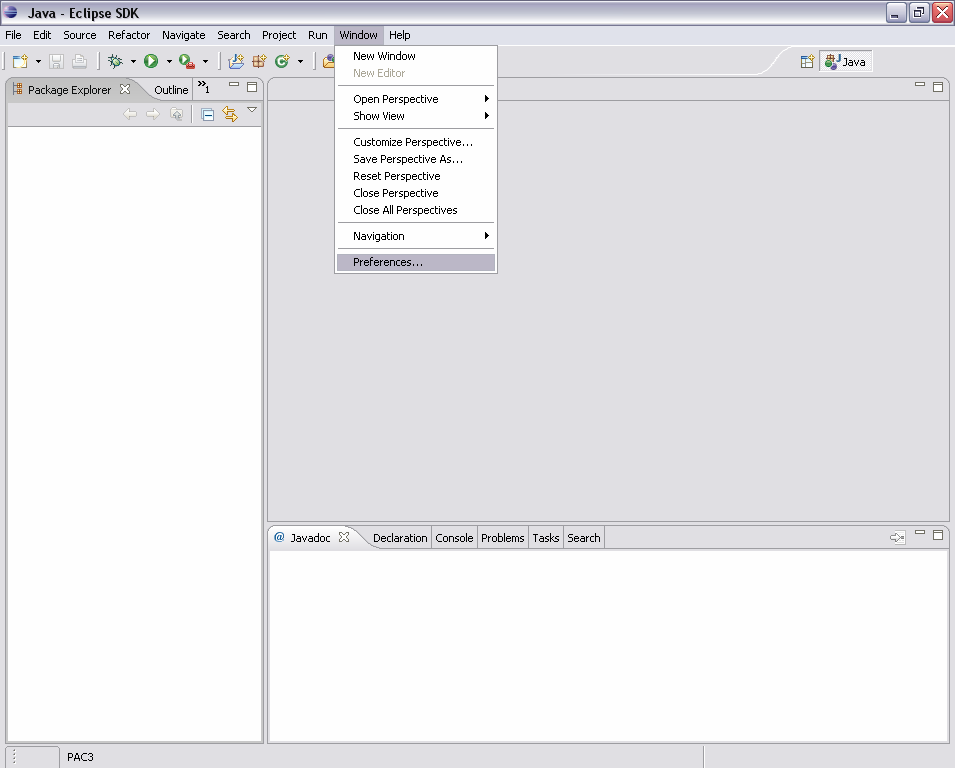
Al iniciar Eclipse vamos al menú Windows y escogemos Preferences:

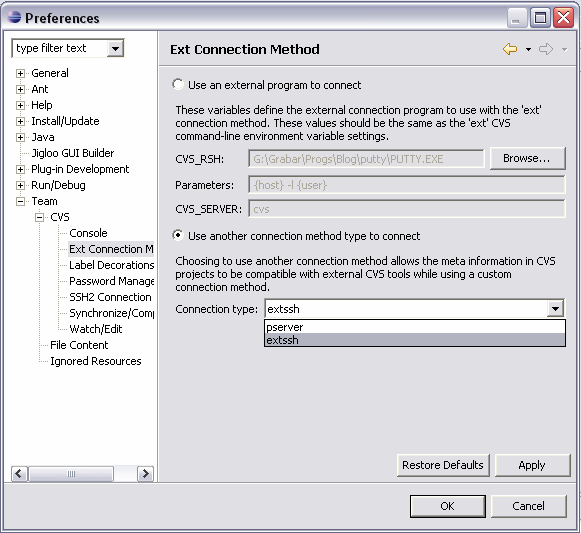
Allí seleccionamos, en la rama CVS, la subrama Team y en ella Ext Connection Method. Debemos indicar que utilizaremos otro método para conectar y escogeremos extssh:

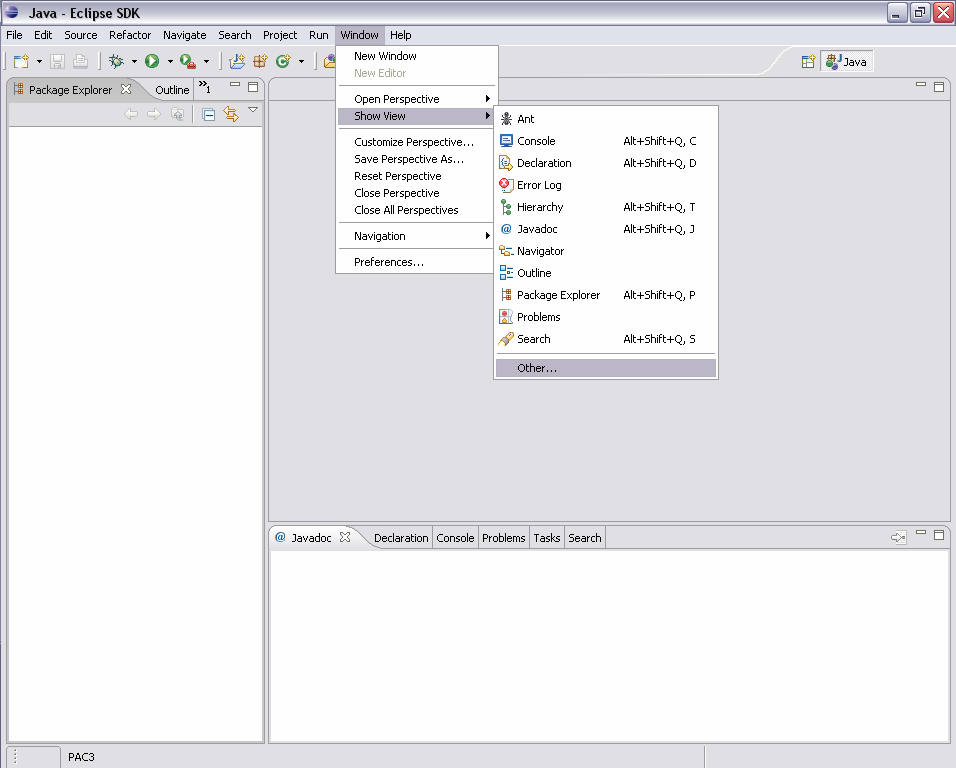
A continuación debemos activar la vista de CVS. En el menú Window, submenú Show View escogemos Other…:

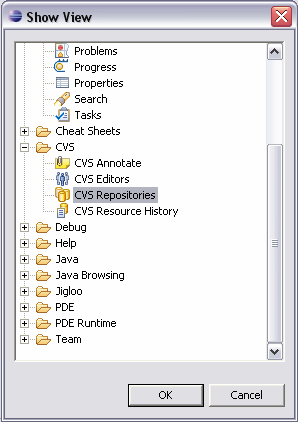
Y seleccionamos la vista CVS Repositories:

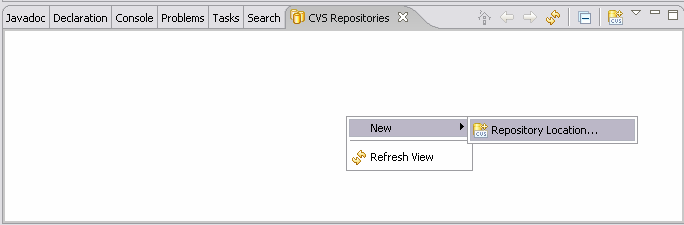
Únicamente queda suministrar la información del repositorio. En la vista que acabamos de activar pulsamos el botón derecho del ratón y escogemos New y Repository Location…:

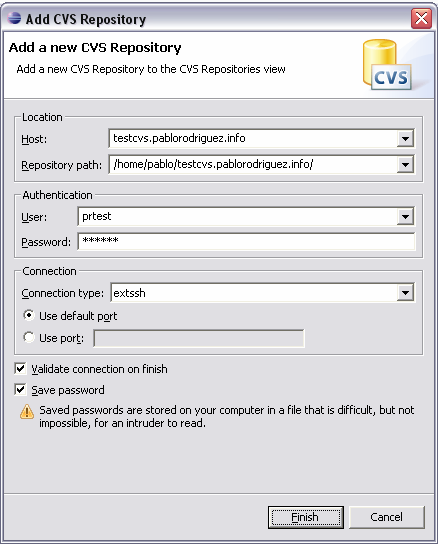
En la ventana proporcionamos la información indicada en la captura de la ventana. La contraseña es igual al nombre del usuario, y permitirá comprobar que todo funciona bien descargando un proyecto de prueba:

Creación del proyecto e inclusión en CVS

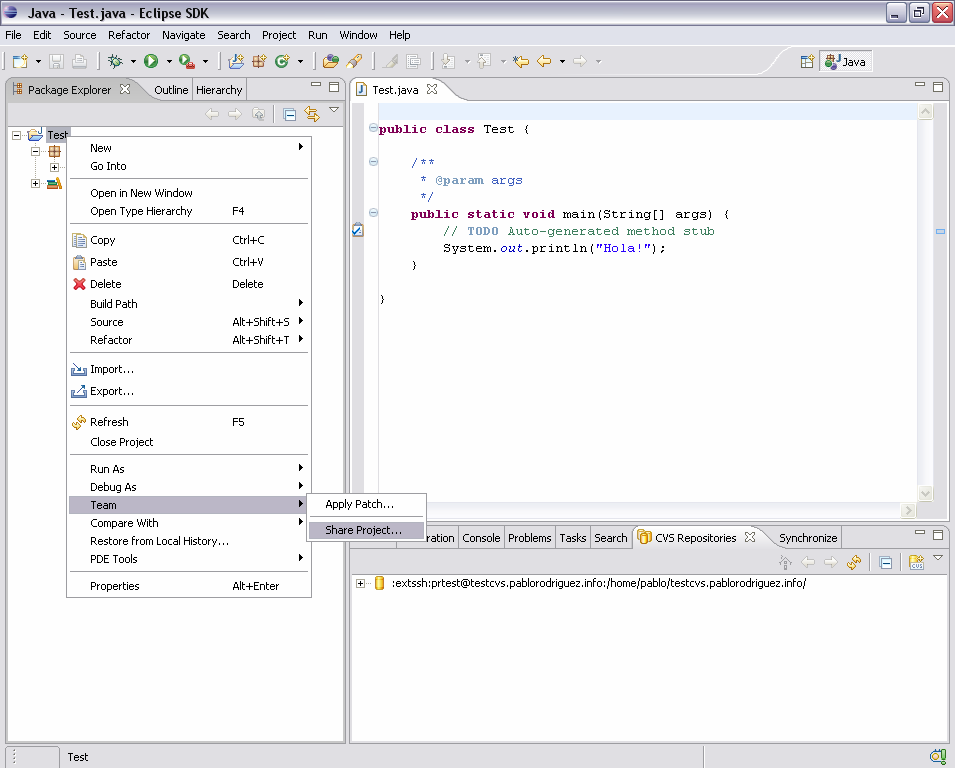
Una vez creado un proyecto en Eclipse compartirlo mediante CVS es muy sencillo. Se debe pulsar con el botón derecho sobre el proyecto y escoger Team y Share Project…:

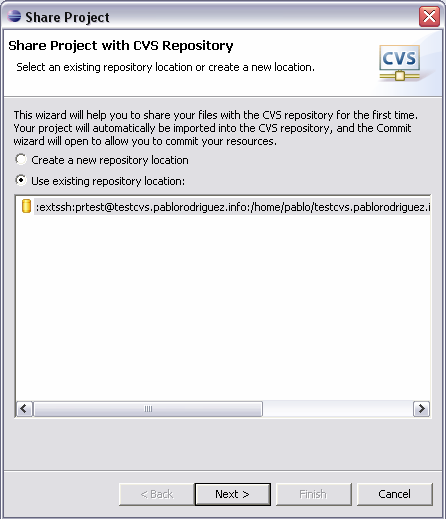
Se escoge a continuación la conexión con el repositorio que creamos antes:

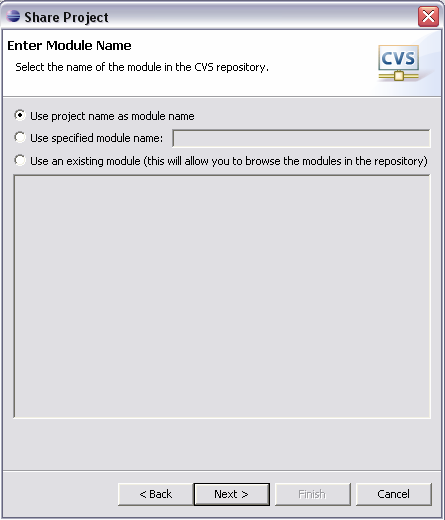
Como nombre de módulo puede dejarse el nombre del proyecto:

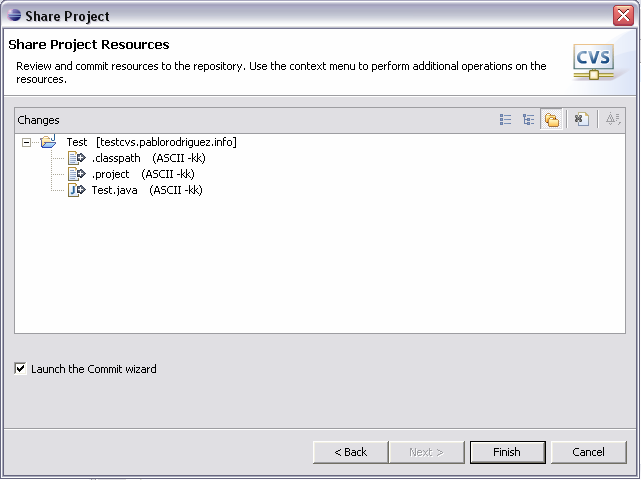
Se indican los ficheros que se van a añadir al repositorio:

Y se accede al diálogo de subida de ficheros, en el que es recomendable comentar los cambios realizados:

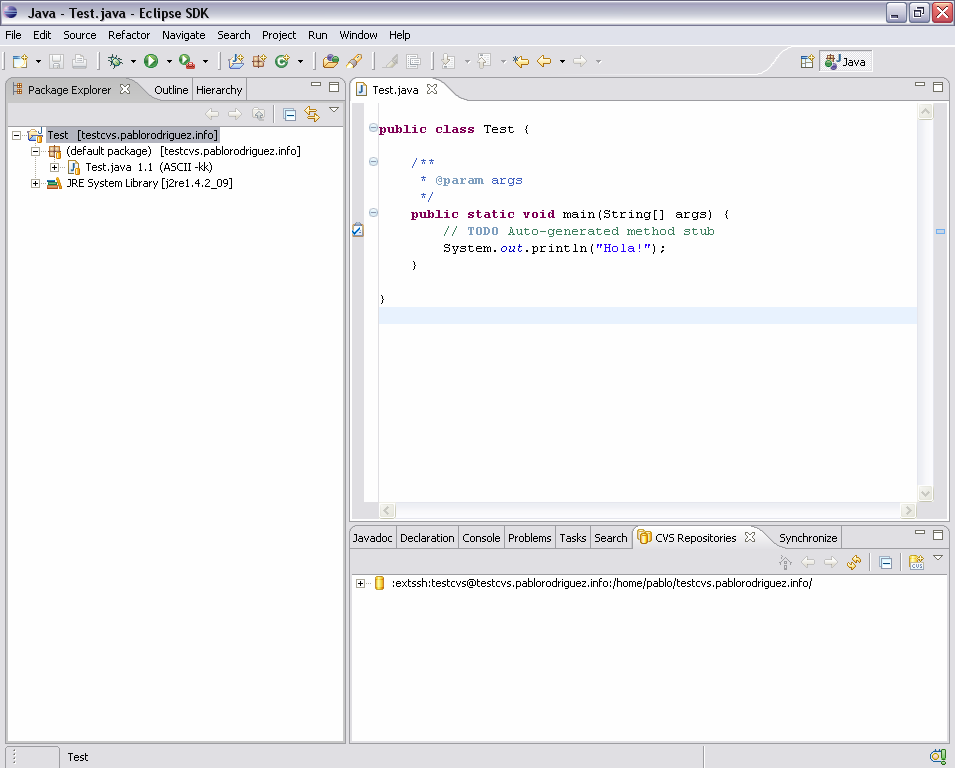
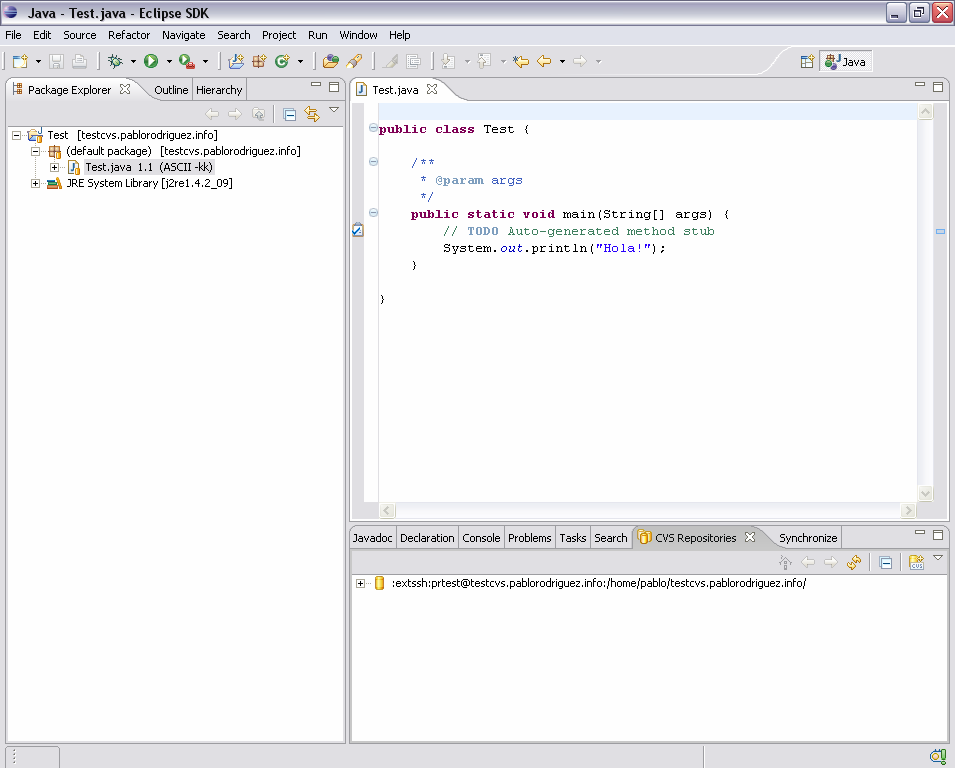
Finalmente en el proyecto aparecen unos nuevos iconos, indicando que está bajo el control de versiones de CVS.

Utilización en Eclipse

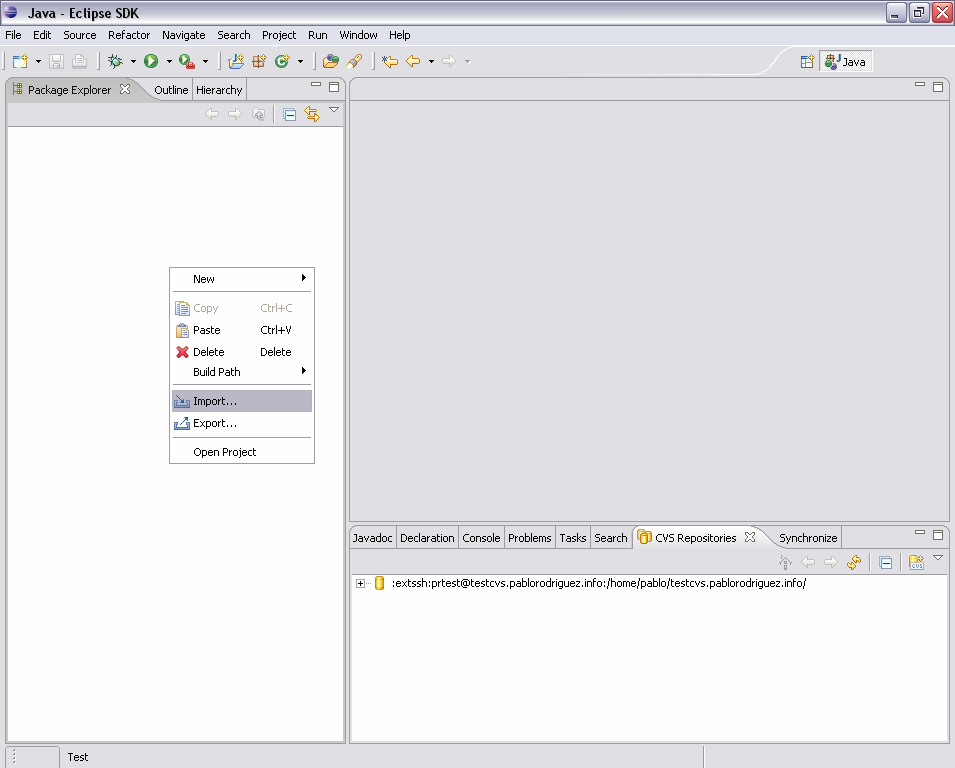
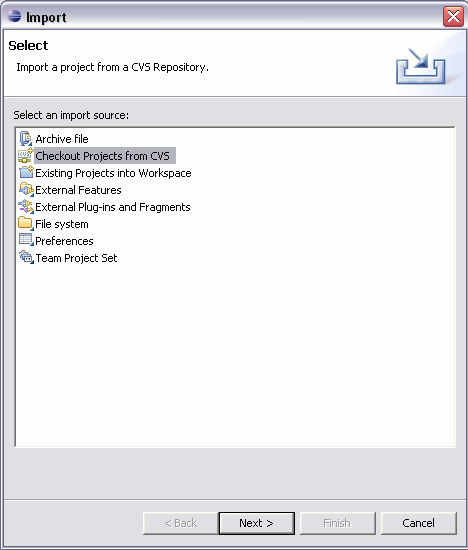
Si se quiere importar desde la nada un proyecto desde CVS se debe pulsar con el botón derecho del ratón en el explorador de proyectos y seleccionar Import…:

En el cuadro de diálogo debemos seleccionar Checkout Projects from CVS:

Se escoge a continuación la conexión con el repositorio que creamos antes:

Debemos proporcionar el nombre del módulo que queremos descargar. Se pueden explorar los módulos existentes desde la vista de repositorios CVS que activamos antes:

Finalmente se descargan los ficheros desde CVS y se importa el proyecto:

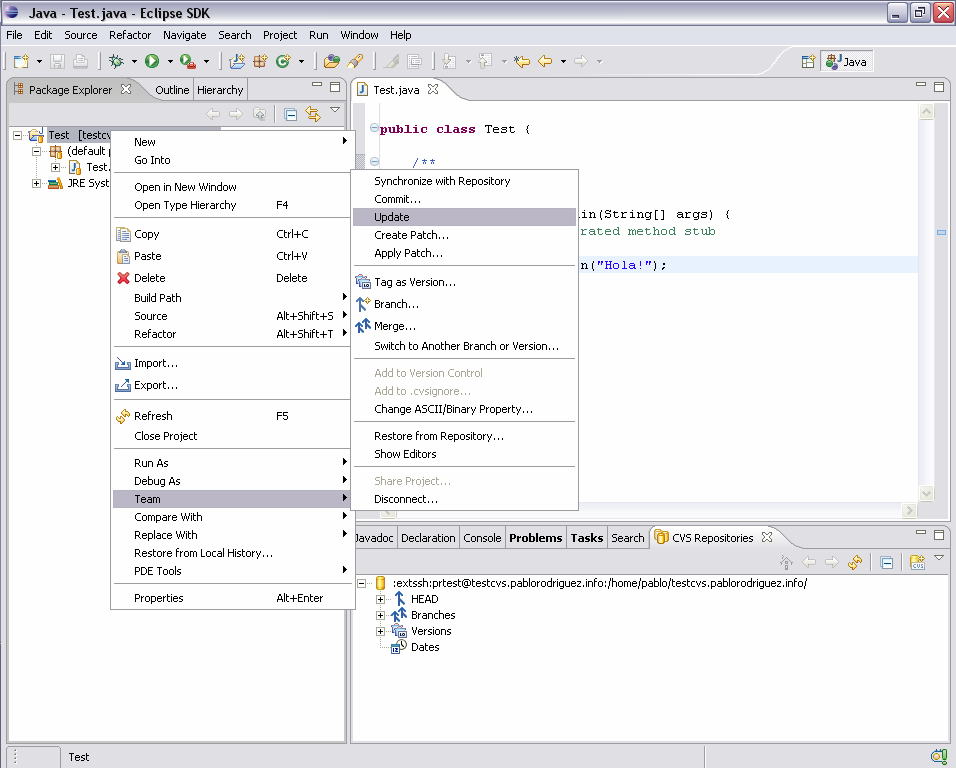
Si el proyecto ya se importó hace tiempo, antes de empezar a trabajar se debe actualizar, pulsando con el botón derecho en el proyecto y seleccionando Team y Update:

Una vez finalizada la sesión se debe subir el código al repositorio, pulsando con el botón derecho en el proyecto y seleccionando Team y Commit…:

Los diálogos que aparecerán será similares a los ya mostrados, por lo que no se repiten de nuevo.

Hay que destacar que el propio CVS genera un nuevo número de versión del fichero con cada subida al repositorio. En caso de detectar conflictos a la hora de subir el código mostrará las secciones conflictivas (por ejemplo, por dos modificaciones simultáneas por dos usuarios). Es el segundo usuario que suba su código quien tiene que validar los cambios comparándolos con los del primero.